

Update docs from Slack
Update your Falconer docs directly from Slack conversations.
Prerequisite
Section titled “Prerequisite”Ensure Slack is connected to your Falconer org.
Update a doc
Section titled “Update a doc”Mention @falcon and it will search your organization’s documentation, identify the right document, and apply targeted edits based on the conversation context.
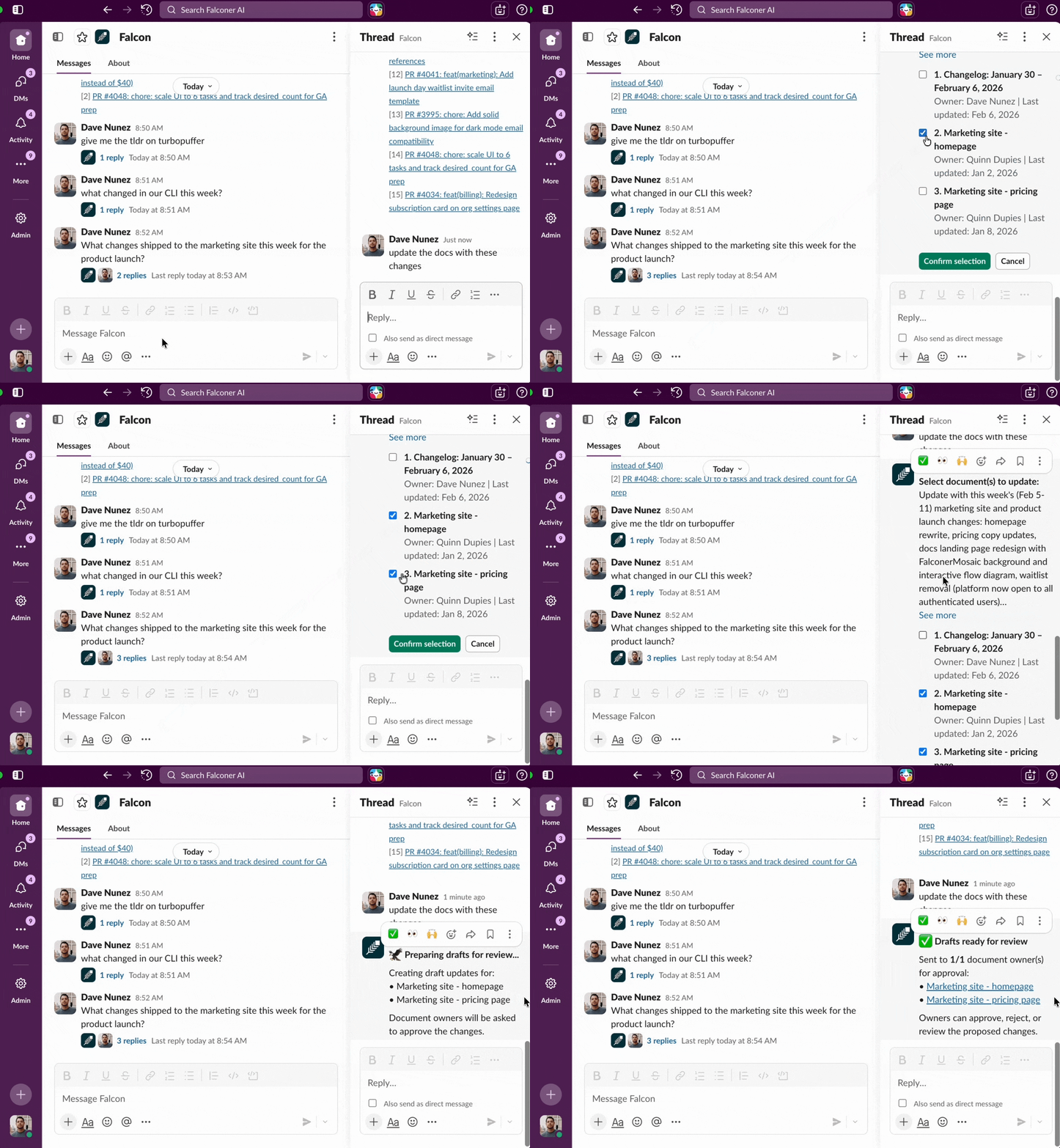
To update a doc:
- Mention Falcon with your update request. For example:
@Falcon update the runbook with the new staging deploy steps- Falcon analyzes the conversation and searches for matching docs
- Falcon identifies the correct document(s)
- Confirm docs you want to update
How changes are applied
Section titled “How changes are applied”What happens after you confirm depends on your organization’s Slack setting:
- Apply directly (the default): Falcon edits the doc right away. It saves a snapshot of the doc first, so you can restore the earlier version from the doc’s history. Doc owners are notified of the change.
- Draft for approval: Falcon creates a draft instead. Doc owners get a request to review and approve it before it goes live.
If you change your mind before confirming, click Cancel. No changes are made.
Tips for better updates
Section titled “Tips for better updates”- Be specific in your request. Tell Falcon which doc to update and what information to add. The more context you provide, the more accurate the update.
- Reference the doc by name. If you know the document title, include it in your message to skip the selection step.
- Use threads. Falcon reads the full thread context, so reply in a thread where the relevant discussion happened.
- Update tables from Slack. Falcon handles structured content like tables — mention the specific rows or columns to change.
Was this page helpful?